The Print Station is the app that prints your event photos on site. Install it on the computer connected to your printers, connect it once to your account with a code, and it prints on its own, with no print dialog.
1. Download
Mac with Apple silicon (M1 or later). Windows 10 or 11.
First launch: a warning may appear
Mac: if macOS won't open the app, open System Settings → Privacy & Security, scroll to the message about PixsBooth Print Station and click “Open Anyway”, then confirm with your password. You only do this once.
Windows: if “Windows protected your PC” appears, click “More info”, then “Run anyway”.
2. Connect the Print Station to your account
- 1First install each printer's driver (DNP, HiTi, Epson…) and check it prints from the computer.
- 2Open the Print Station.
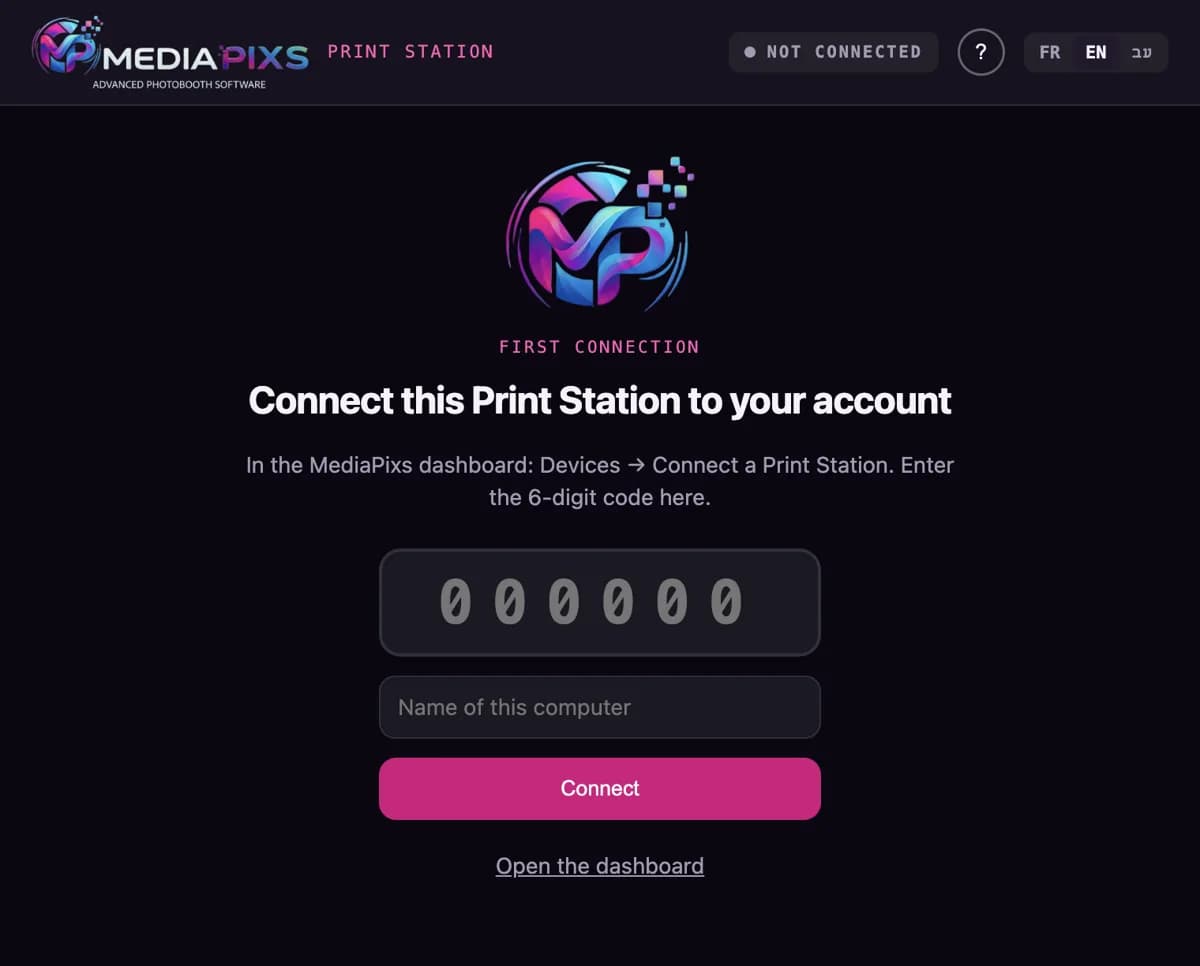
- 3In your PixsBooth dashboard: Devices → Connect a Print Station. A 6-digit code is shown for 10 minutes.
- 4Enter the code in the Print Station, name the computer (e.g. “Booth Mac”), then click “Connect”.
3. Choose the printers
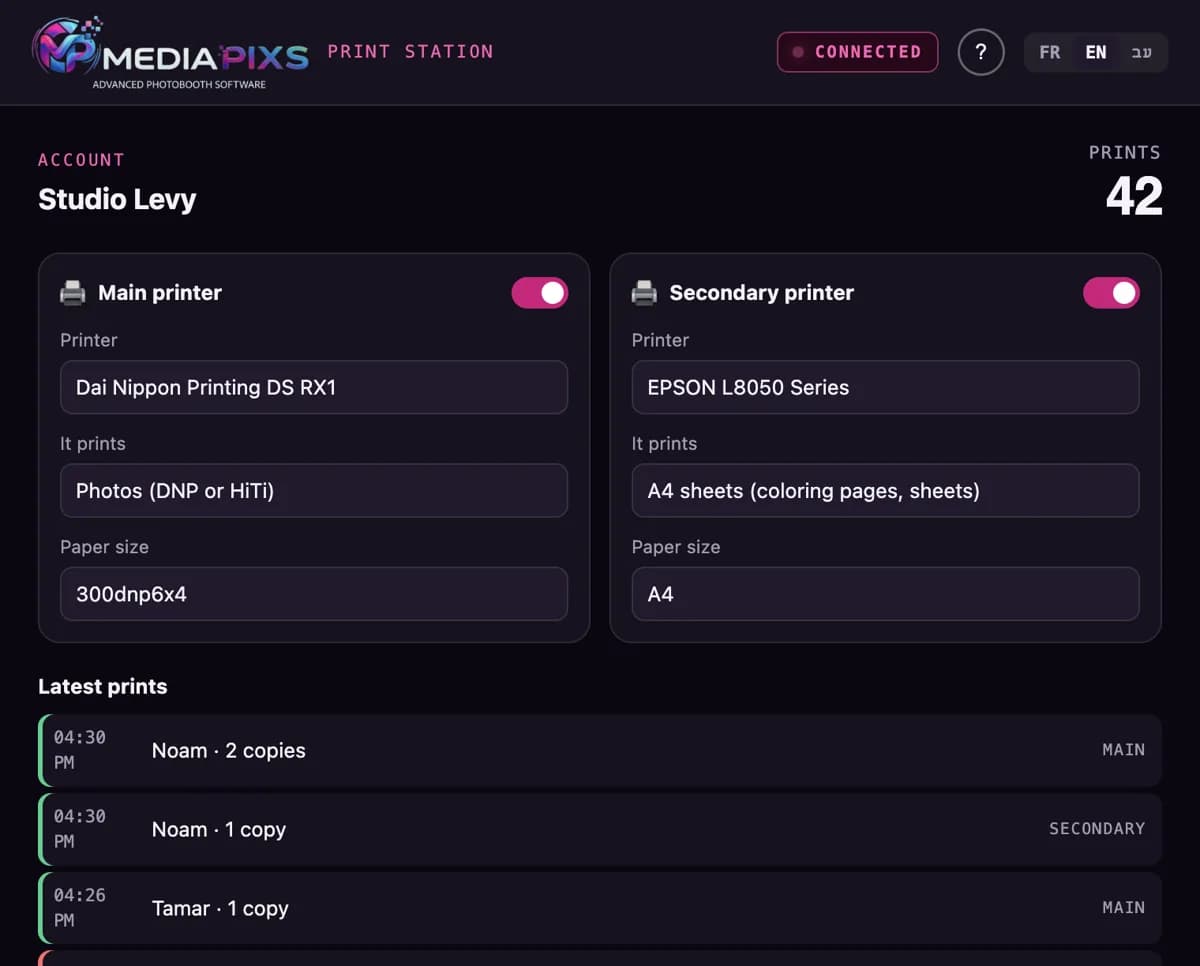
- 1Main printer: pick your DNP (or HiTi) and “Photos”.
- 2Secondary printer: if you run ColorPixs or Popixs sheets, turn it on, pick your Epson and “A4 sheets”.
- 3Paper size: leave “Default”, or pick your paper size (e.g. 300dnp6x4 for 4×6 on DNP).
- 4Settings are saved right away. Both printers work at the same time.
- 5Click “Print a test page” under each printer: a PixsBooth page should come out (4×6 photo on the DNP, light A4 page on the Epson).
DNP: always pick a predefined driver paper size, never a custom one.
4. Check before the event
- 1The light at the top should say “Connected”.
- 2Open your event's kiosk with ?test=1 at the end of the address, take a photo and tap “Print”: the print should come out and show up in “Latest prints”.
- 3In the dashboard, on the Devices page, your Print Station shows as “Online”.
On event day
- Don't rely on the venue's Wi-Fi: it often blocks connections or drops. Bring a 4G router or a hotspot.
- Plug the computer into power and keep the Print Station open: it prevents sleep while running.
- If the network drops, prints wait: they come out as soon as the connection is back.
Troubleshooting
- The light stays “Offline”
- Check the computer's internet connection. The Print Station retries on its own.
- My printer isn't in the list
- Install its driver and check it prints from the computer, then reopen the Print Station.
- A print is red in “Latest prints”
- The printer rejected the job (paper, ribbon, cover). Fix it, then reprint from the dashboard or the gallery.
- A print doesn't come out
- If the Print Station had taken it and the network dropped, it goes back in the queue after 5 minutes.
- “This Print Station was removed from the account”
- It was removed on the Devices page. Generate a new code and connect it again.
- Windows prints at the wrong size
- Check the printer's default paper size in Windows settings (4×6 for DNP).